
The multi-language feature allows your event portal to support more than one language. When enabled, content can be created and managed in multiple languages across pages, sidebars, forms, and user checklists.
This feature is ideal for events with international or multilingual users.
Requesting the Multi-Language Feature
The multi-language feature is not enabled by default.
To request this feature, please contact: 📧 support@xpobay.com
Once enabled, language settings will become available in Event Branding within your event portal.
Turning On Languages in Event Branding
After the feature has been enabled by Support:
1. Go to Content
2. Select Event Branding
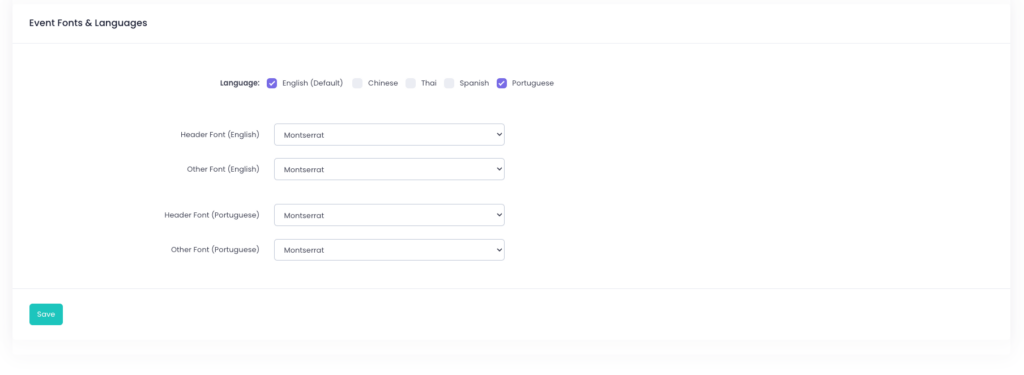
3. Scroll to the bottom section called Event Fonts and Languages
In this section, you can:
– Turn on the additional language(s) you want to use (for example: Portuguese, Spanish, Chinese, or Thai)
– Select the font for: The default language (English) and each additional language.
4. Click Save
Once saved, multi-language will be active for your event portal.
What Happens After Multi-Language Is Enabled
After clicking Save in Event Branding, supported content areas are automatically duplicated.
Each supported area includes:
– One English version
– One version for each enabled language
Content is not automatically translated. All translations must be entered manually.
Pages, Content Blocks, and Sidebar
Pages, content blocks, and sidebar content all follow the same multi-language behaviour.
When editing these areas, you will see separate versions of the same content for each enabled language. It is recommended to finalise the English version first before translating the additional language versions.
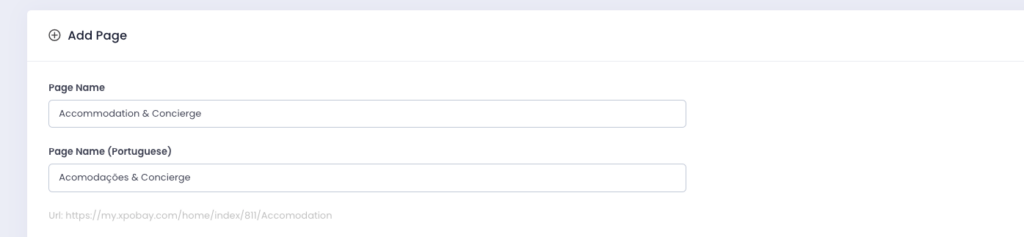
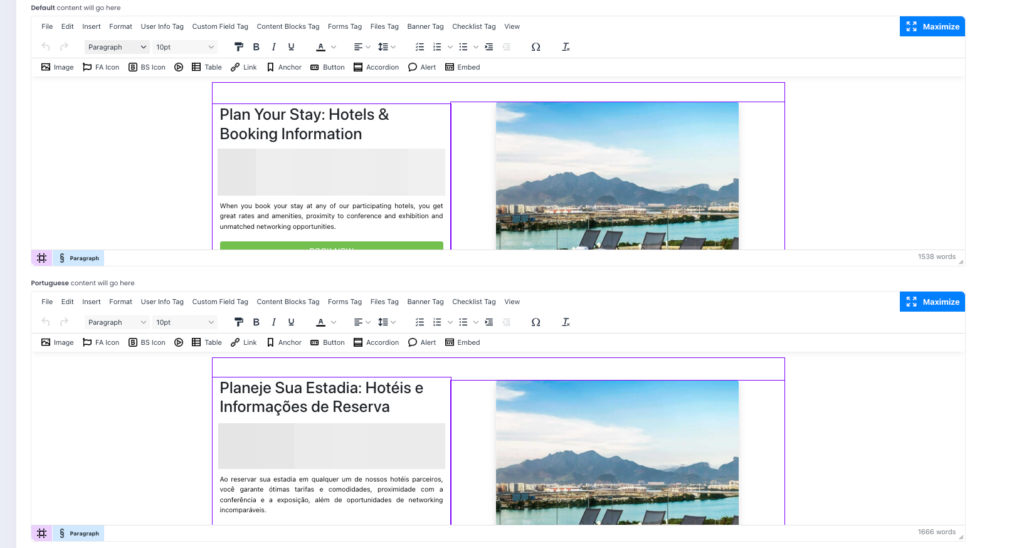
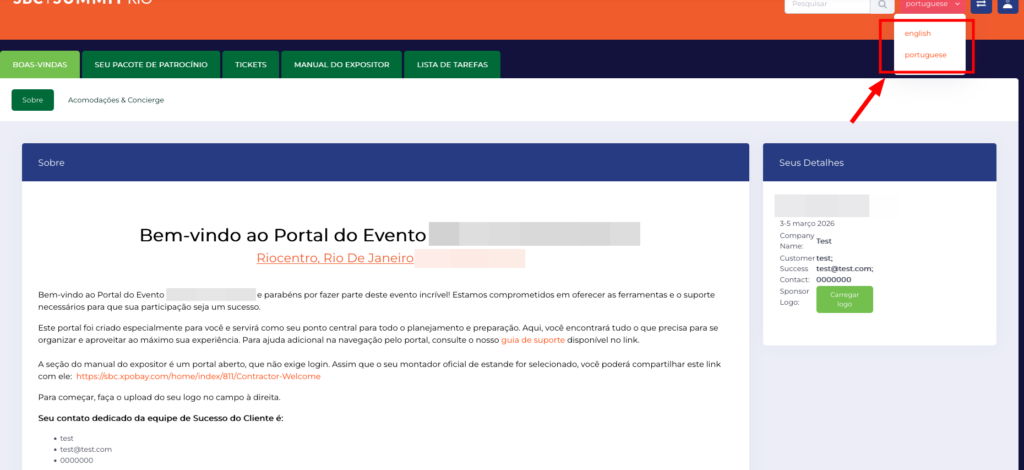
Users will see content based on their selected language in the event portal.
Forms and User Checklists
Forms and user checklists also support multi-language but require specific setup steps.
For detailed instructions, please refer to:
– Multi-language User Checklists
Important Notes
– English remains the default language
– Translations must be managed manually
– If a language field is left empty, content may not appear in that language
– To add or change languages, please contact: support@xpobay.com.