
When multi-language is enabled for your event portal, forms can be created and managed in more than one language. Each form includes a separate version per enabled language, allowing users to complete the form in their selected language.
This article explains how to correctly create and translate forms using the multi-language feature.
Before You Start
Before translating a form:
– Multi-language must already be enabled for your event portal
– The additional language(s) must be turned on in Event Branding
If multi-language is not enabled, please contact: 📧 support@xpobay.com.
Recommended Workflow
To avoid issues, always follow this order:
1. Create and finalise the English version of the form
2 . Create the language version
3 . Translate the form into the additional language
Creating the Language Version of a Form
After the English form is complete:
1. Open the form
2. Create the language version for the enabled language (for example, Portuguese)
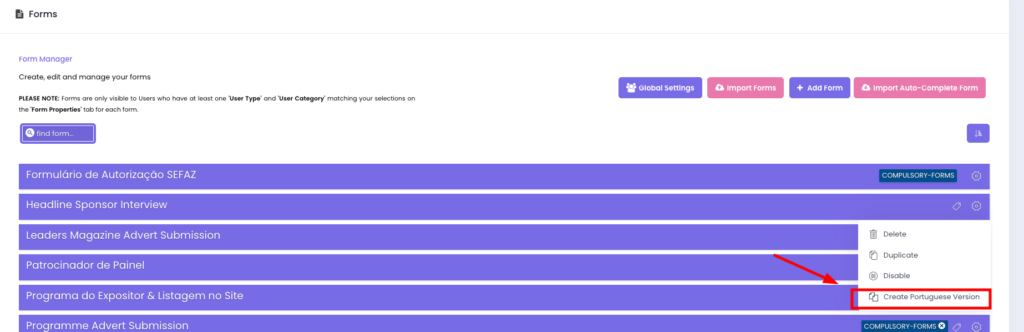
Once created:
– The form structure is duplicated
– Field order and settings remain the same
– Content fields are ready to be translated

Updating Forms
If you modify or add a field in the main (English) form after a language version has been created, the language version must be updated again.
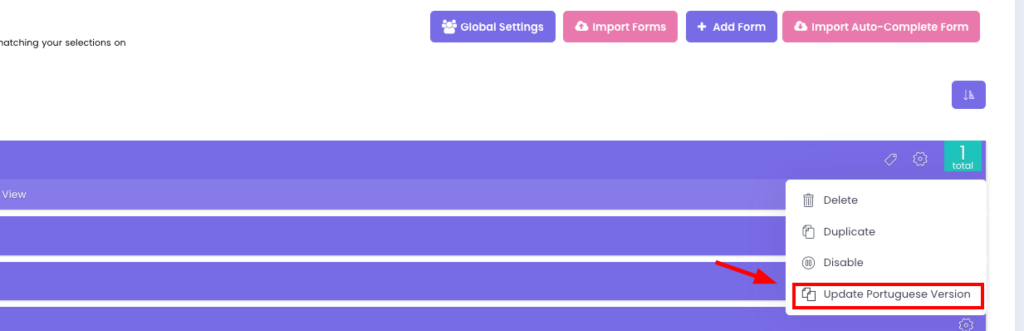
When you click Update [Language] Version:
– A fresh copy of the updated English form is created
– All translations must be entered again.
For this reason, it is recommended to only create the language version once the English form structure is fully completed.
Recommended Best Practice
To avoid losing translations:
– Finalise and stabilise the main (English) form first
– Only create the language version once the form structure is unlikely to change
– Avoid structural changes to the English form after translations are completed
This helps reduce rework and prevents translated content from being overwritten.