
This article explains how to embed YouTube videos on pages so they display correctly.
YouTube videos can be embedded in two supported ways in the page editor.
How to get the correct YouTube video link
To embed a YouTube video, you need to use the Embed option provided by YouTube.
Steps
1. Open the video on YouTube.
2. Click Share below the video.

3. Click the Embed icon (</>).
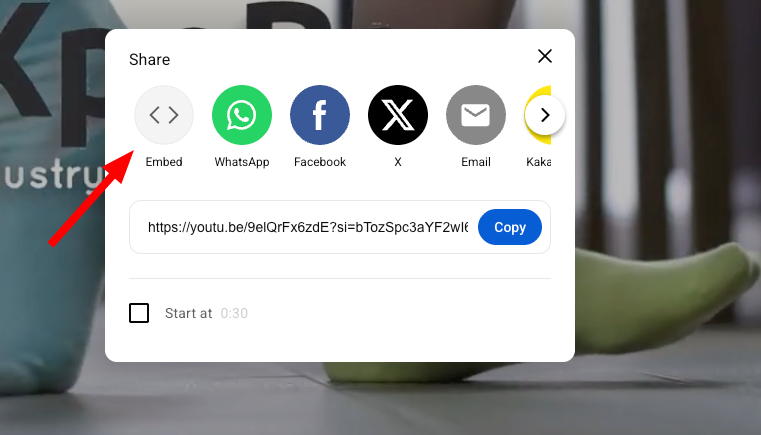
4. The embed window will open and display the embed code.
From this embed code, you can either:
– Copy the full embed code, or
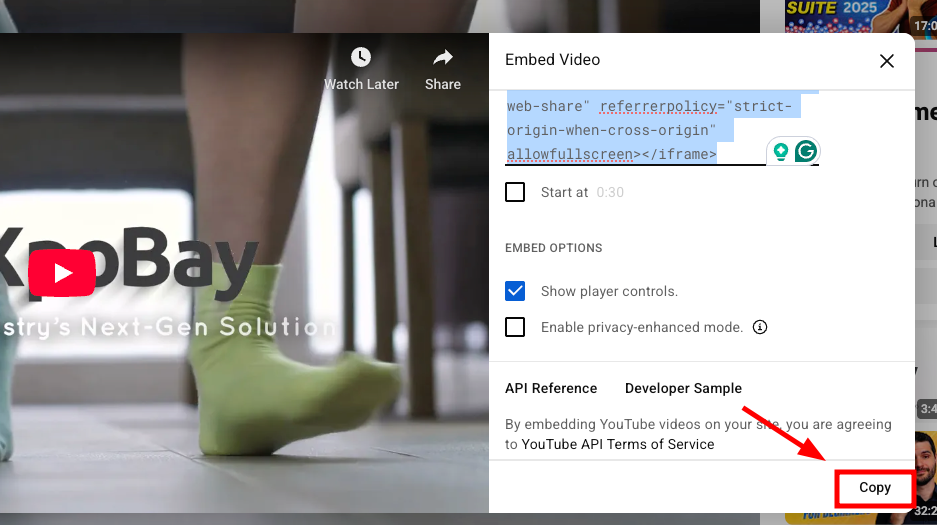
– Copy the video embed link from within the code.
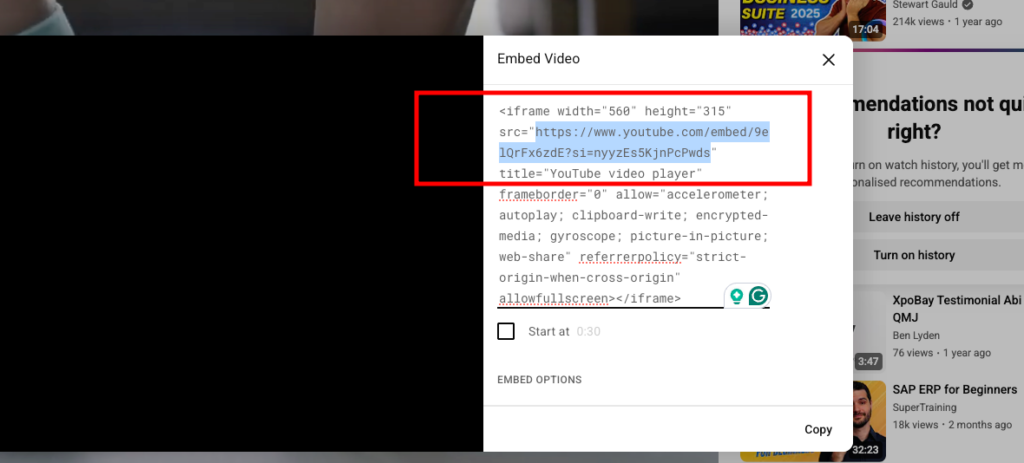
How to embed a YouTube video on a page
Once you have the YouTube embed code or embed link, you can embed the video using one of the following methods.
Option 1: Source Code
This method uses the full embed code provided by YouTube.
1. Open the page where you want to add the video.
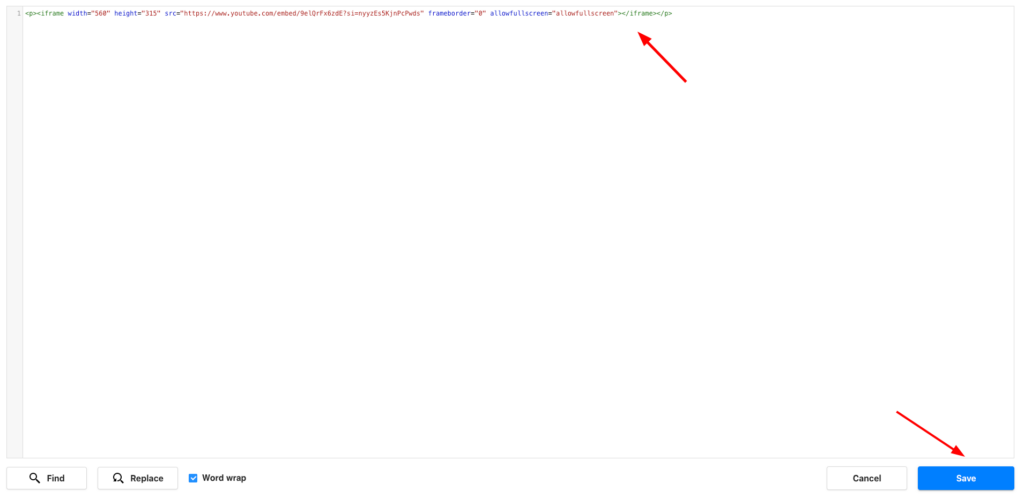
2. In the page editor, click View.
3. Select Source Code.
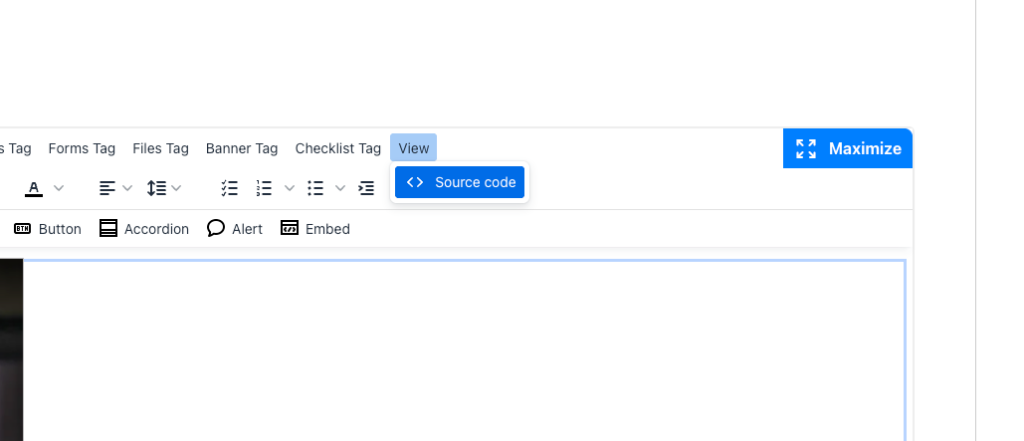
4. Paste the full YouTube embed code into the editor.
Example embed code:
<iframe width="560" height="315" src="https://www.youtube.com/embed/9elQrFx6zdE?si=nyyzEs5KjnPcPwds" title="YouTube video player" frameborder="0" allow="accelerometer; autoplay; clipboard-write; encrypted-media; gyroscope; picture-in-picture; web-share" referrerpolicy="strict-origin-when-cross-origin" allowfullscreen></iframe>5. Then, save it.
Option 2: Page Embed
This method works in the same way as embedding a Vimeo video.
1. Open the page where you want to add the video.
2. In the page editor, click Page Embed.
3. From the YouTube embed code, copy only the video embed link:
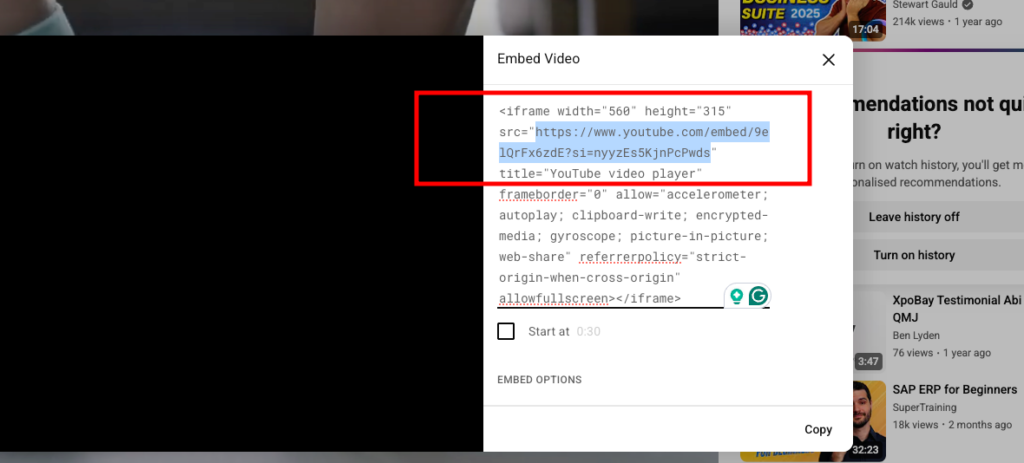
https://www.youtube.com/embed/9elQrFx6zdE?si=nyyzEs5KjnPcPwds4. Paste this link into the URL field.
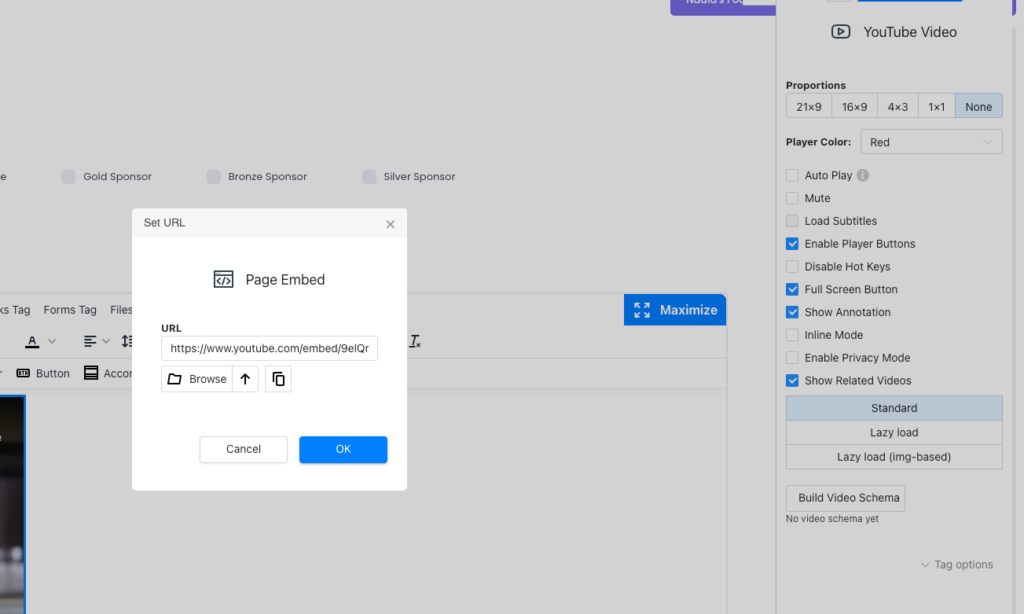
5. Click OK.
6. Adjust the width or height if required.
Once the video is embedded, review the page and adjust the video size if needed to suit your layout.