
This article explains how to embed Vimeo videos on pages so they display correctly.
Vimeo videos require a specific approach, as the default embed code provided by Vimeo includes scripts that are not supported and may trigger security warnings.
How to get the correct Vimeo video link
When you click Embed in Vimeo, it provides a full embed code that includes an external script (player.js). This script is not supported and should not be used.
Instead, you only need the video’s player link.
Steps
1. Open the video in Vimeo.
2. Click Share, then choose Embed.
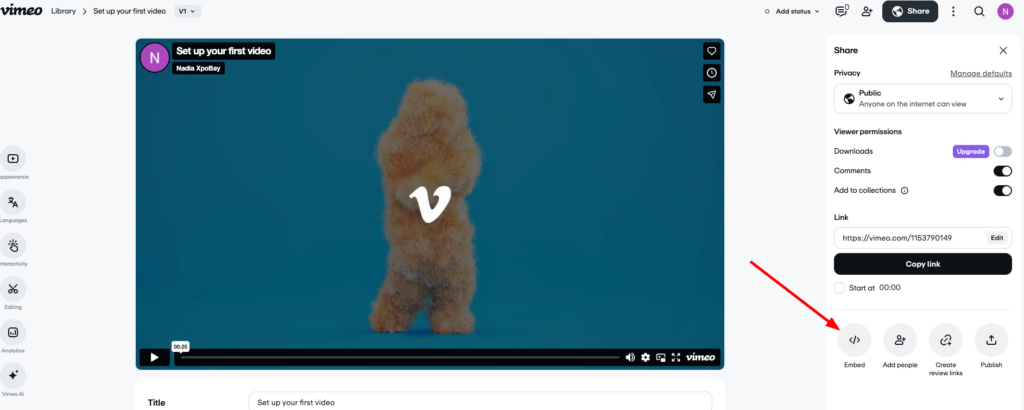
3. Copy the player link (it starts with https://player.vimeo.com/video/...).
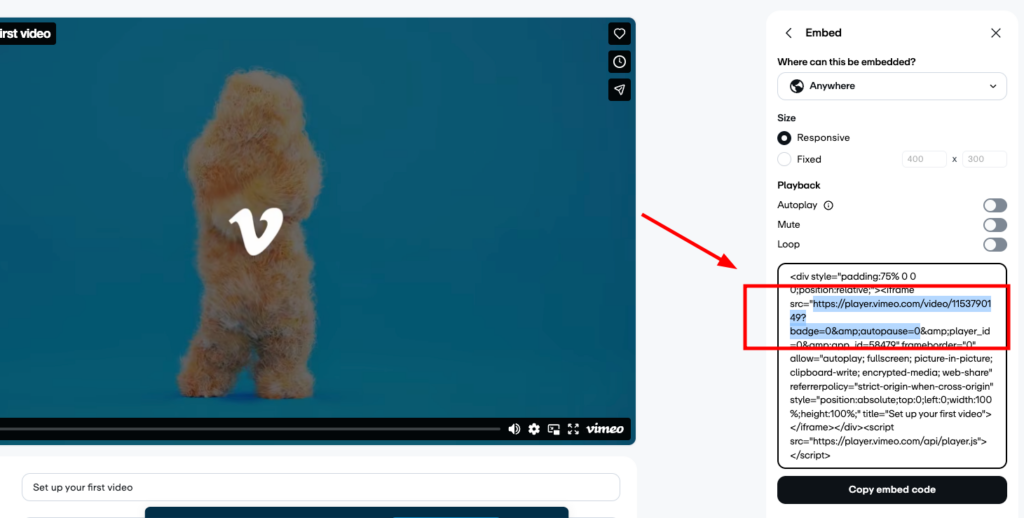
Example:
https://player.vimeo.com/video/1153790149?badge=0&autopause=0How to embed a Vimeo video on a page
Once you have the correct Vimeo player link:
1. Open the page where you want to add the video.
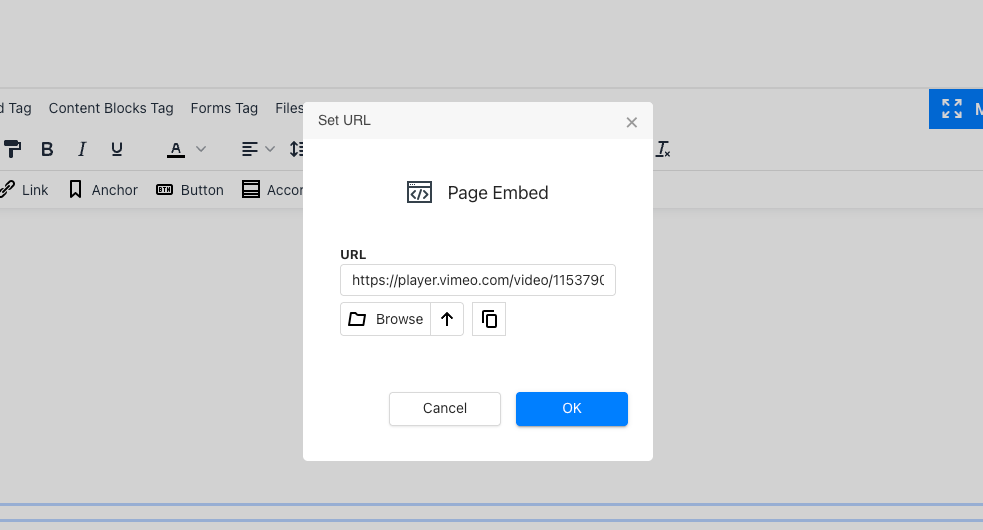
2. In the page editor, click Page Embed.
3. Paste the Vimeo player link into the URL field.
4. Click OK.
5. Adjust the Width so the video displays at your preferred size on the page. You can also adjust the height if required.
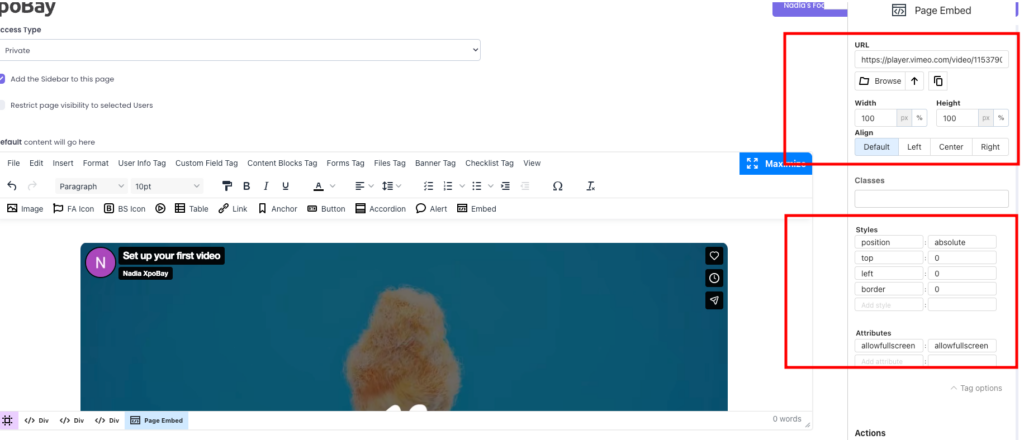
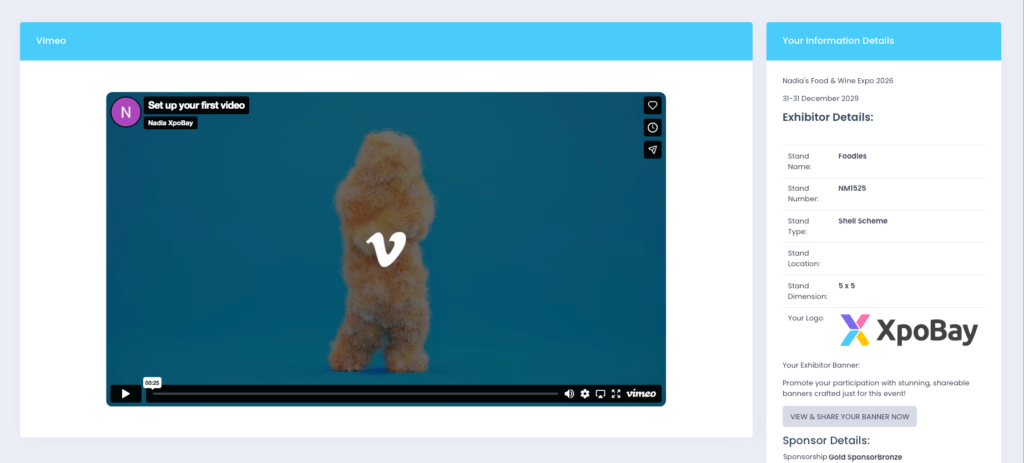
The video will display directly on the page rather than appearing as a link.
Notes and tips:
– Do not paste Vimeo’s full embed code directly into the page editor source code, as it includes scripts that are not supported.
– Always use the player.vimeo.com video link when embedding a Vimeo video.
– You can return to the Page Embed settings at any time to adjust the video size.